
SSuite Office Software, Experience free office suite software with us.
Providers of Safe and Trusted Software with Pure Visual Simplicity
SSuite Office MonoBase


An all in one database creator, with ODBC connectivity, SQL query engine, and custom report builder...
Minimum System Requirements:
- 1024 x 768 Display Size
- Runs on All Windows systems - 32 Bit / 64 Bit
Starter's Guide To MonoBase - PDF

Create relational databases with unlimited tables, fields, and rows. Includes a custom report builder. Interface with ODBC compatible databases and create custom reports for them. Please install and run this database application with full administrator rights for best performance and user experience.
Features Available:
- Filter tables instantly
- Ultra simple graphical-user-interface
- Open up to 5 databases simultaneously
- Export your data to comma separated files
- Create custom reports for all your databases
- Run SQL statements with the SQL query engine
- Print tables and queries straight from your data grid
- Access any ODBC compatible database of any size
- Open up to 5 tables of the same database simultaneously
- Full help file to assist you in creating custom database reports
- Create relational databases with unlimited tables, fields, and rows
- Use MonoBase as an Interface to any ODBC compatible database
- Supports any SQL standard that your ODBC compatible database requires
- Full administration capabilities of any ODBC compatible database through our SQL engine
*** New Updates ***
- Export data in CSV or XML format
- Master / Detail view on linked tables
- One click table and data form creation
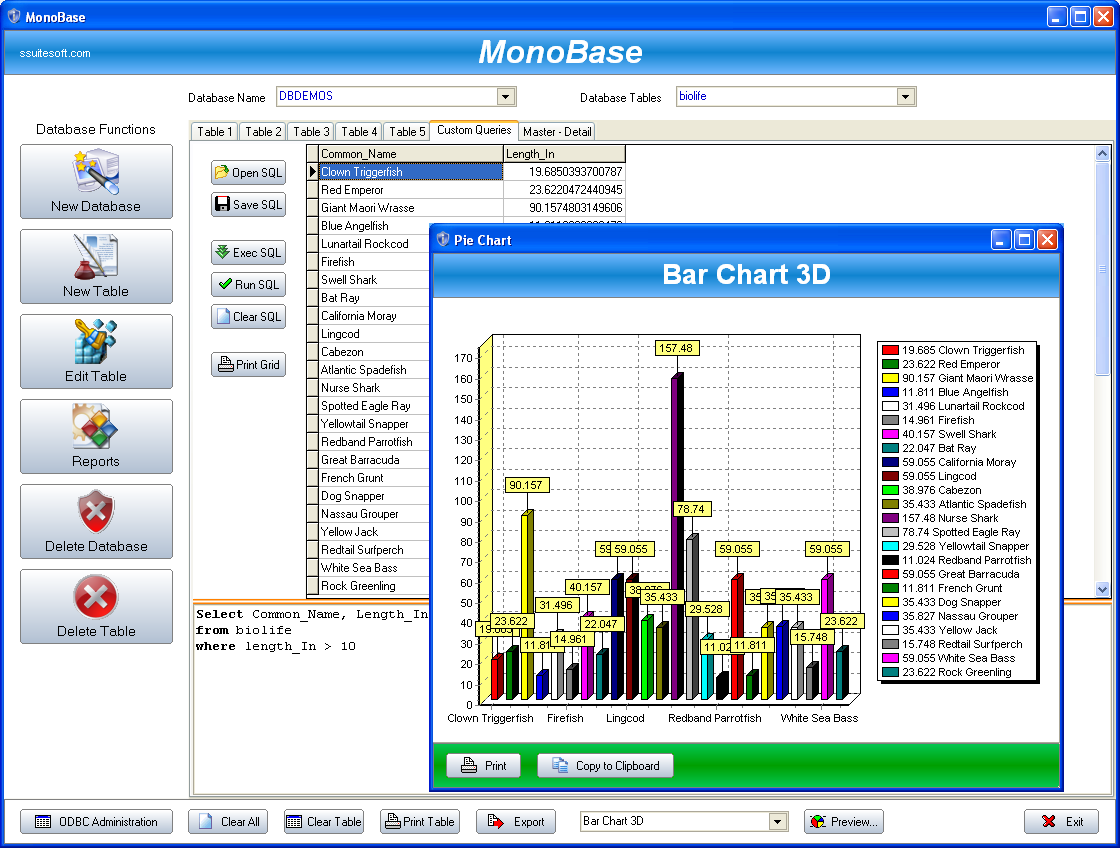
- Added 2D/3D charting on custom SQL Queries
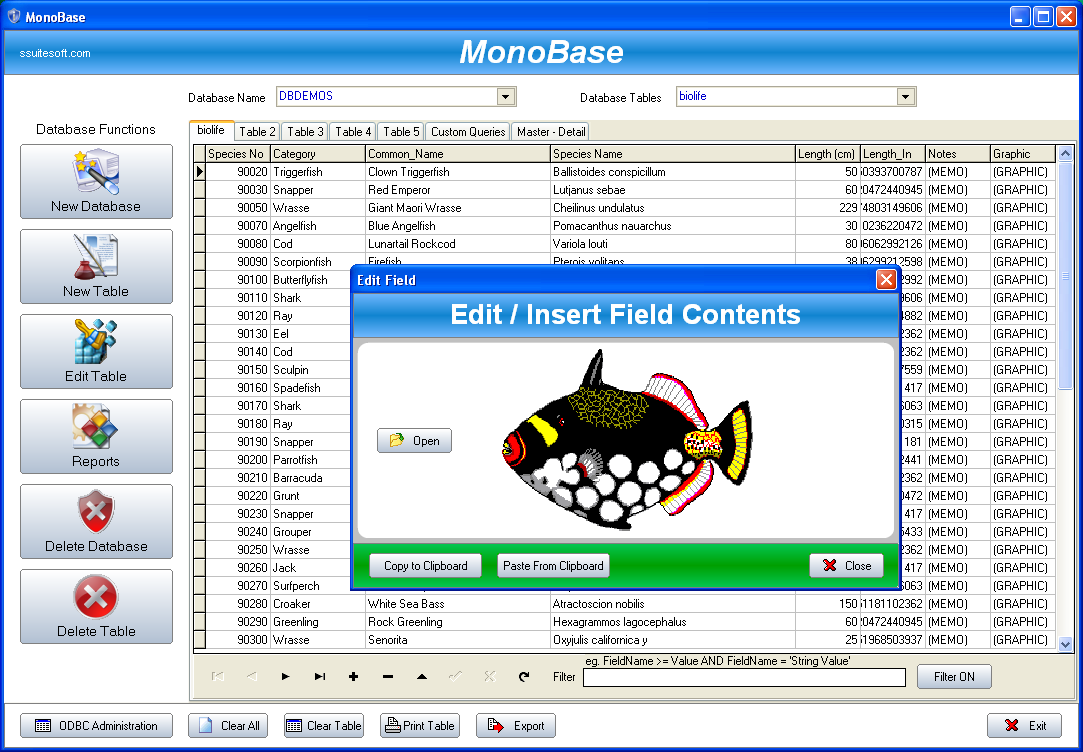
- Insert or paste Images with unlimited size for archiving
- Enhanced data handling for edit/insert and viewing of data
- Tables now have referential integrity with primary and secondary keys
- Added ODBC drivers and translators for MS Excel, SQL Server, Paradox, Access, dBase, and Text files etc.

Starter's Guide To MonoBase - PDF
 Set the Application and Install File to run with Full Administrator Rights.
 10.4MB in Download Size


Quick Starter's Guide
Monobase is able to create forms dynamically for data input or you may use grids for data edit or insertion. There is a more comprehensive user's guide that you may download at the bottom of this starters guide.
When creating a database, table, or field, please use the following naming conventions: "Table_Name", "My_New_Database", "Field_Name". The database does not work well with spaces between names.
Here is a few steps to help you get started:
- Click on the "New Database" button
- Enter the Database name you want to create e.g. "Address_Book"
- Select the folder where you want your database stored
- Click on the "Create" button to create your database.
Creating Tables and Fields:
- Click on the "New Table" button
- Enter the name of your table to create e.g. "Friends_Family"
- On each line enter the field names and field type that you want to save in you new table:
- "Index_Number" - AutoInc {Primary key, this field must always be unique}
- "Name" - String - 85
- "Surname" - String - 25
- "Notes_Comments" - Memo - 200
- "Personal_Image" - Graphic Bitmap - 240
- Click on the "Create" button to create your table
- Click on the Drop-Down ComboBox on the main form to select your newly created table
- Your table and data fields will now be displayed
On the bottom of the grid-table you will see a navigation bar. To edit, delete or add any data, click on any of the appropriate buttons first.
Click on the "+" button to enter a new record. For easier data entry or data viewing, simply double-click on the table cell to enter your data after you have clicked on the "Edit ^ " or "Add +" button. Remember to click on the "Post" button after you have entered or added a new record. Each button will give you a hint as to what each of them do.
That is basically the whole process you need to follow in creating, editing, and viewing your database and tables.
If you wish to create reports on your data, see the helpfile in the report writer or in the menu next to the Monobase shortcut.
Find a more comprehensive starter's guide here:

Third-Party Links On Database Design
Resources: Web Office Tutorials The News Web-Links Desktop Wallpaper SSuite Press Logos Free Apps
Extra Info: About Us Awards Reviews Testimonials Installation Guide Supported Document Formats Service Packs
 SSuite Office Software


Privacy Policy Contact Us Legal Copyright (c) 2003 - 2037 Van Loo Software(TM) - Thank You For Visiting. All Rights Reserved.
Trade Marks, Logos, and Registered Names belong to their Respective Owners. This website is Touch-Device friendly.
Go Green Software.